
Using the Projections Workspace
Create a current-position model, copy it to explore a proposed scenario and save the scenario you want to use as supporting evidence in an SOA.
Before you start
Review the client’s current fact find and the source of the figures you plan to model.
Know the purpose, timeframe and assumptions for the comparison. A projection is illustrative and requires adviser review.
1. Create the client scenario
Open the client, select Projections and click the plus icon. Enter a meaningful scenario name and select Create scenario. Starting from the client record keeps the saved work associated with that client.
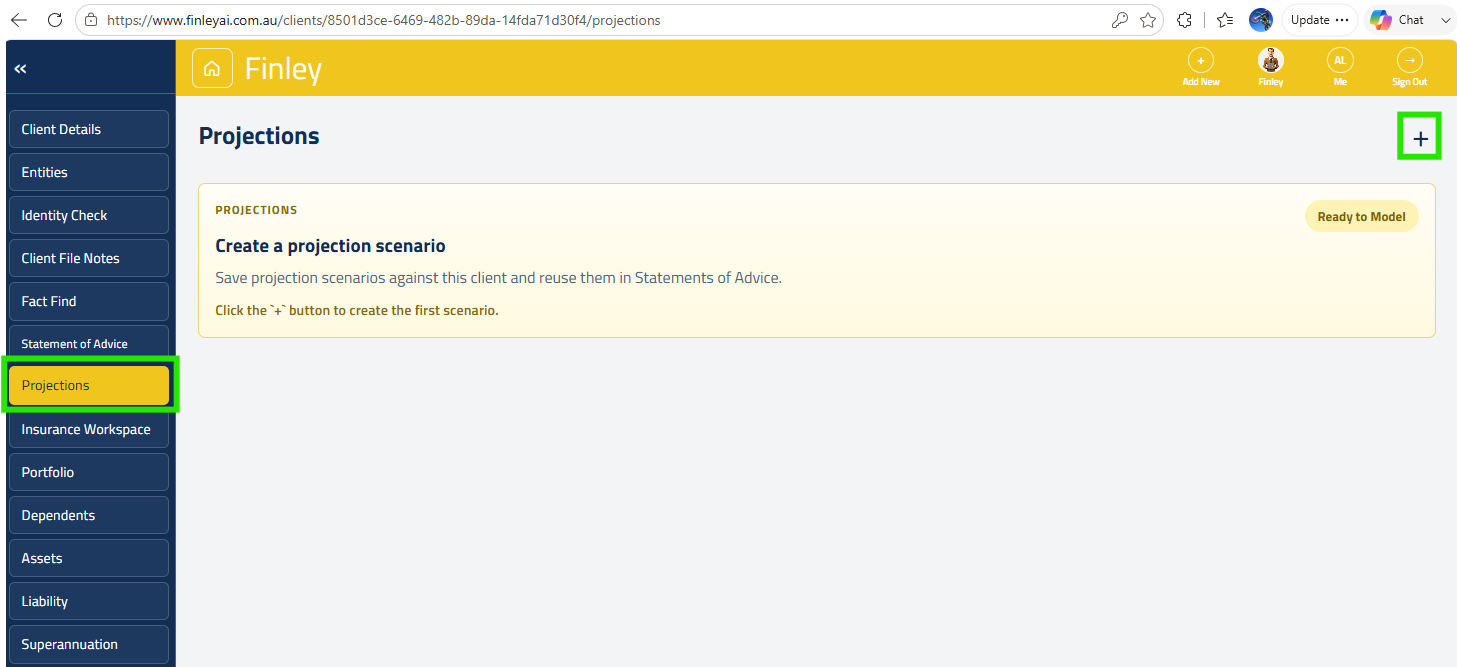
From the client profile, select Projections in the left menu, and click the + icon to create a new scenario
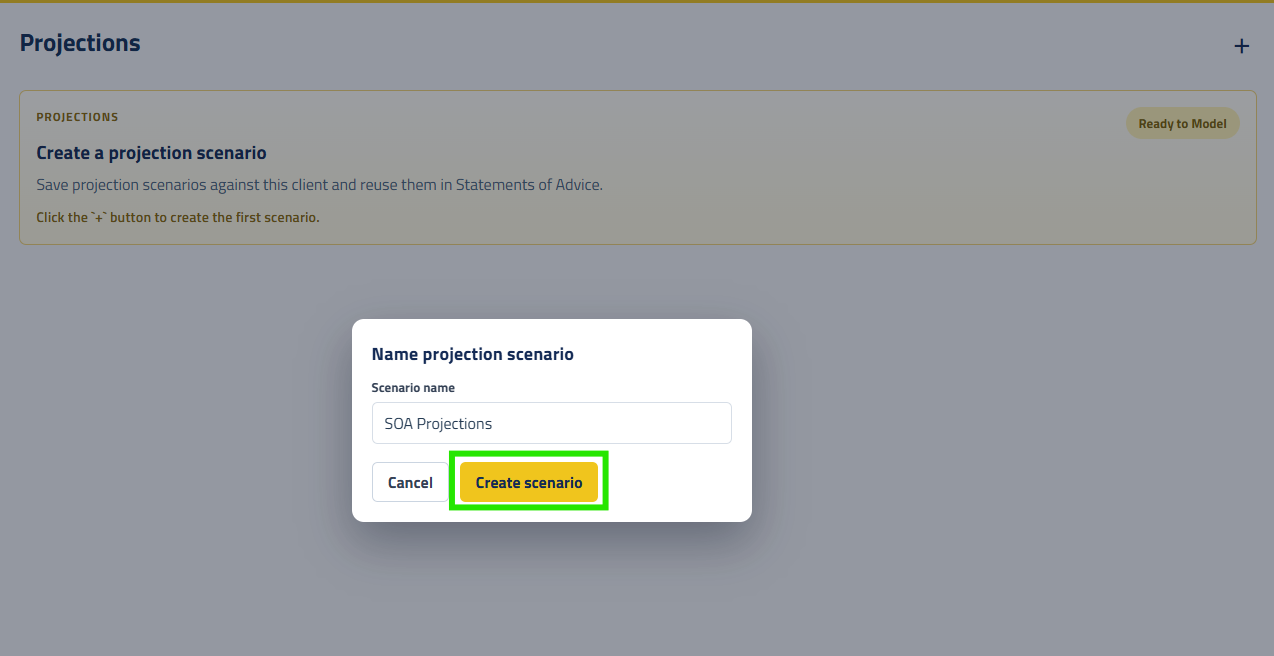
Give your new scenario a name, and click ‘Create Scenario’
2. Load the starting information
Select Import fact find to use the client information held in Finley, or Upload fact find to use a DOCX, PDF, CSV or TXT source document. Wait for the source data to load, then select Run projection model. Read any import or mapping messages. Imported figures need checking before you treat the model as the client’s current position.
3. Check the current position
In Scenario inputs, review Scenario details, Cashflow, Assets and liabilities, Superannuation and Pensions as relevant. Check the start date, people, ownership, opening balances, repayments, contributions and retirement timing. Check Assumptions separately, including returns, inflation and the legislative settings used. Save changes before leaving the workspace.
4. Create a comparison
Once the baseline is correct, use Copy to new scenario and give the copy a clear name. Change the inputs and actions relevant to the proposal, such as an asset sale, debt repayment, contribution or rollover. Check the active scenario before editing. Keep comparable dates and assumptions unless the difference is intentional and explained.
5. Review outcomes and save
Review the relevant tables and charts for personal cash flow, taxation, assets and liabilities, superannuation, pensions and Centrelink. Check any funding shortfall or required-check messages. Use Save changes and resolve any error before closing. If the app reports that the scenario changed elsewhere, consider your unsaved edits before choosing Reload latest version.
6. Use the selected scenario in the SOA
Return to the SOA setup and include projections where relevant. Choose the Projections workspace scenario, then the Modelling scenario you want to use. This is separate from selecting ProductRex research. Review the rendered SOA to confirm the intended scenario and assumptions are represented; a current-position baseline alone does not show the benefit of a proposal.
7. Export supporting work
Select Export Excel to download the active scenario’s workbook. Inspect the file and retain it through your practice’s recordkeeping process. The export is a snapshot; later edits in Finley require a fresh export.
Check before you finish
Baseline and proposed scenario use the intended client, ownership, dates and monetary assumptions.
The saved model can be reopened and the SOA uses the intended modelling scenario.
Projected outcomes are described as illustrations under assumptions, without guaranteed results.
If something does not work
If Import fact find is unavailable, confirm that you opened the workspace from a client record.
If Run projection model is disabled, wait for source loading or resolve the import error.
Do not close on a save error. Retry or resolve the version conflict before discarding edits.