
Connecting ProductRex and using research in Finley
Connect your ProductRex account, select relevant research for Finley Chat or an SOA, and confirm which client or entity owns each account before using it.
Before you start
Use your own authorised ProductRex account and a saved research scenario.
Open the correct Finley client. For SOA work, open the intended SOA scenario and check that product advice is included in its scope.
1. Connect your account
Open Me or My Profile, then Integrations. Find ProductRex and select Connect. Complete the ProductRex sign-in and authorisation process yourself. On returning to Finley, check that the status is Connected and that the connected account is the intended one. If an existing connection has expired, use Reconnect.
2. Open the ProductRex step in the SOA
Start from the client’s Statement of Advice section and open the relevant SOA scenario. Select the relevant advice inclusions. Where ProductRex research is included in the enabled SOA workflow, open that step. It may be skipped where it is not needed for the advice. The exact placement depends on the SOA interface enabled for your account.
3. Select scenarios and confirm owners
Search the ProductRex scenarios and select those relevant to this advice. Review the scenario name and risk profile. Under Confirm owner, select the correct person or people, or enter the relevant household or entity name. Check individual and joint ownership carefully before importing.
4. Import and check the result
In the newer setup, Next imports the selected scenarios. In the earlier setup, select Import and continue. Wait for the import to finish. If ownership is missing or an import fails, correct the issue and retry. Review the resulting product, portfolio and fee information against the source research; importing a scenario does not establish that its proposed product is the final recommendation.
5. Explain how the research should be used
State whether the research supports retaining an existing product, evaluating alternatives or implementing a confirmed replacement. Identify any conflict between the scenario and the adviser’s current instructions. Keep ongoing, upfront and transaction costs separate where the source distinguishes them, and flag missing figures rather than treating them as zero.
6. Review before issuing advice
Check the currency of the research, the owner, current and proposed products, balances and disclosed costs. Confirm that the SOA reflects the adviser’s actual decision and supporting reasons. If the underlying research changes, review the imported information and affected document wording again.
Check before you finish
The intended ProductRex account is connected.
Each imported scenario has the correct owner and relates to this advice.
Research proposals are not presented as client consent or a final adviser decision without supporting instructions.
If something does not work
For an expired or unauthorised connection, reconnect through your profile and then reopen the research step.
If no scenarios are found, check the connected account, search terms and whether the research was saved in ProductRex.
If the next step fails, check owner mappings and the error before retrying.
Using ProductRex in the Finley AI Chat Console
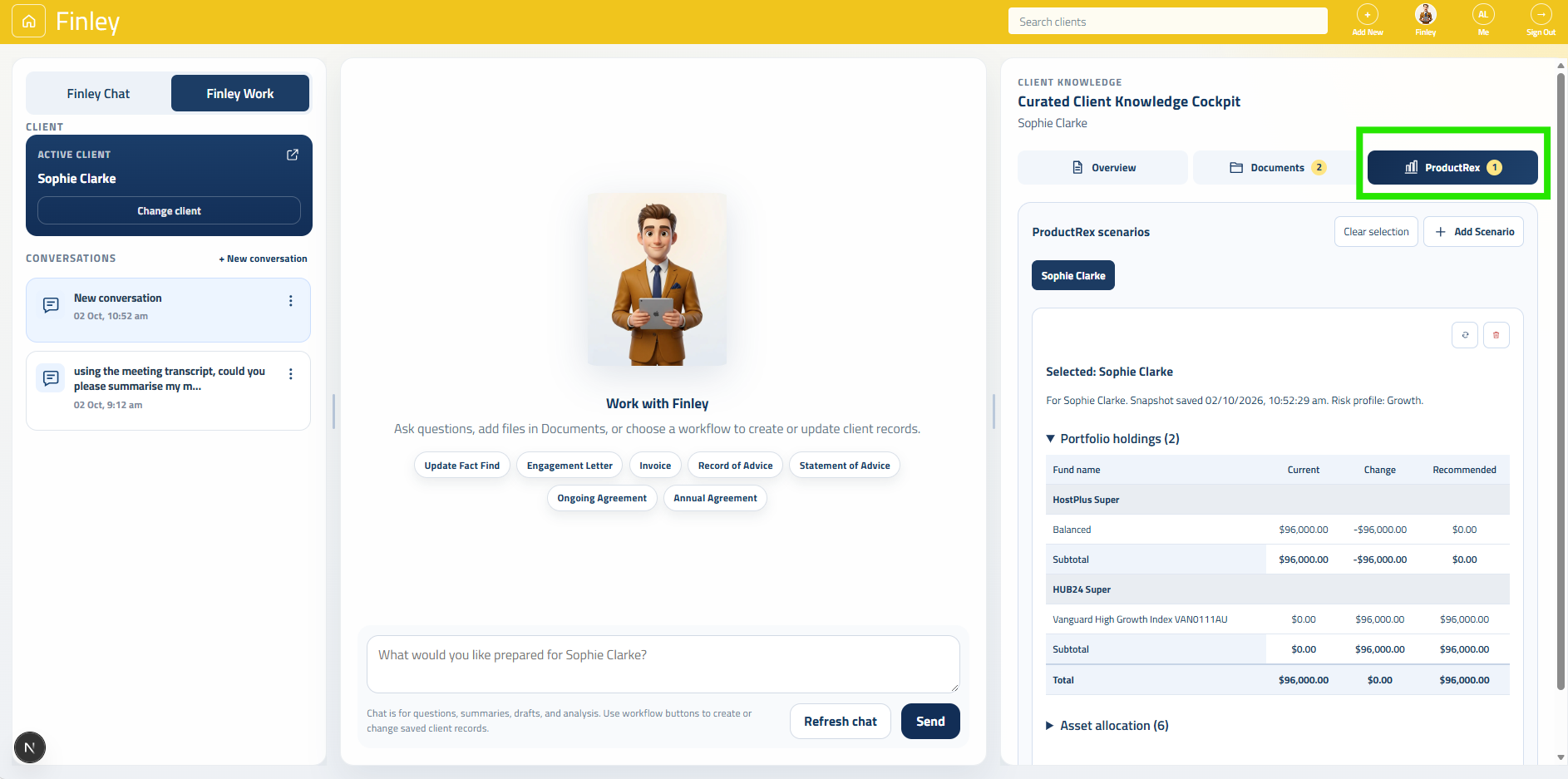
Add a ProductRex scenario:
In the Client Knowledge Cockpit on the right:
Select the ProductRex tab.
Click Add Scenario.
Search by client or scenario name.
Select the ProductRex scenario.
Confirm who the scenario belongs to.
Click Add scenario for documents.
Check the scenario and owner carefully before adding it to the client’s conversation.
To include another scenario, click Add Scenario again and repeat these steps.
Review the research
Each added scenario appears as a tab. Select a tab to view its details.
All added scenarios are available to Finley. Switching tabs changes which scenario you are viewing; it does not deselect the others.
Each scenario contains three sections:
| Section | What it shows |
|---|---|
| Portfolio holdings | Current and recommended holdings, changes, platform subtotals and portfolio totals. Alternative portfolios are excluded from this table. |
| Asset allocation | Current allocation, risk profile, recommended allocation and variance, including defensive and growth totals. Variance is recommended allocation minus risk profile. |
| Product comparisons and fees | Current, recommended and alternative products. Fee rows are hidden when every product has an explicit zero amount. |
The Total fees (displayed) row adds the displayed fee components. It is not necessarily an annual cost: it can include upfront and transaction fees. Missing information is not treated as zero.
Ask Finley about the scenarios
Use Finley Chat to explore the selected research. Name the scenario when you have added more than one.
The following prompts use illustrative names and products. They are examples of instructions, not product recommendations.
Example prompts:
Summarise the differences between the current and recommended portfolios in Sophie’s scenario.
Explain how the recommended asset allocation differs from the Growth risk profile.
Compare the fees shown for Hostplus, HUB24 and Netwealth. Separate ongoing and one-off costs where the source identifies them, and flag anything unverified.
Compare the two selected scenarios separately. Do not combine their balances.
Use ProductRex in a document
Switch to Finley Work.
Before drafting:
Select the supporting documents in the Documents tab.
Add the relevant ProductRex scenarios.
Give Finley clear instructions about the advice you want documented.
Selected documents can provide recommendations, rationale and implementation instructions, alongside client facts.
For example:
Prepare a Record of Advice using the selected meeting transcript and ProductRex scenario. My recommendation is to retain the existing Hostplus account. Include the portfolio research and explain any differences between the scenario proposal and my recommendation.
For a Record of Advice, use the Record of Advice button. The ROA integration uses Finley’s existing layout and maps the selected source information into its sections.
ProductRex research is presented in this order:
Portfolio holdings.
Asset allocation.
Product comparisons and fees.
A product marked recommended in ProductRex represents the scenario’s proposal. It does not, by itself, establish the adviser’s final recommendation or the client’s consent.
Refresh or remove research
Refresh icon: updates that scenario’s saved snapshot from ProductRex.
Trash icon: removes that scenario from the conversation’s selected research.
Clear selection: removes all selected scenarios from the conversation.
These controls do not delete the scenarios in ProductRex.
Check the saved date before using the research. After refreshing a scenario, ask Finley to update an existing draft if it needs to reflect the newer information.