
Record an Identity Check and AML/CTF assessment
Record identification details, assessment answers and supporting notes against the client. This guide covers recording the work in Finley. Your practice’s approved AML/CTF process determines the checks, risk assessment and escalation required.
Before you start
Open the correct live client record and have the verified identification information available.
Confirm the correct person or entity owner and the verification method used.
Have your approved assessment and escalation process available.
1. Create the check
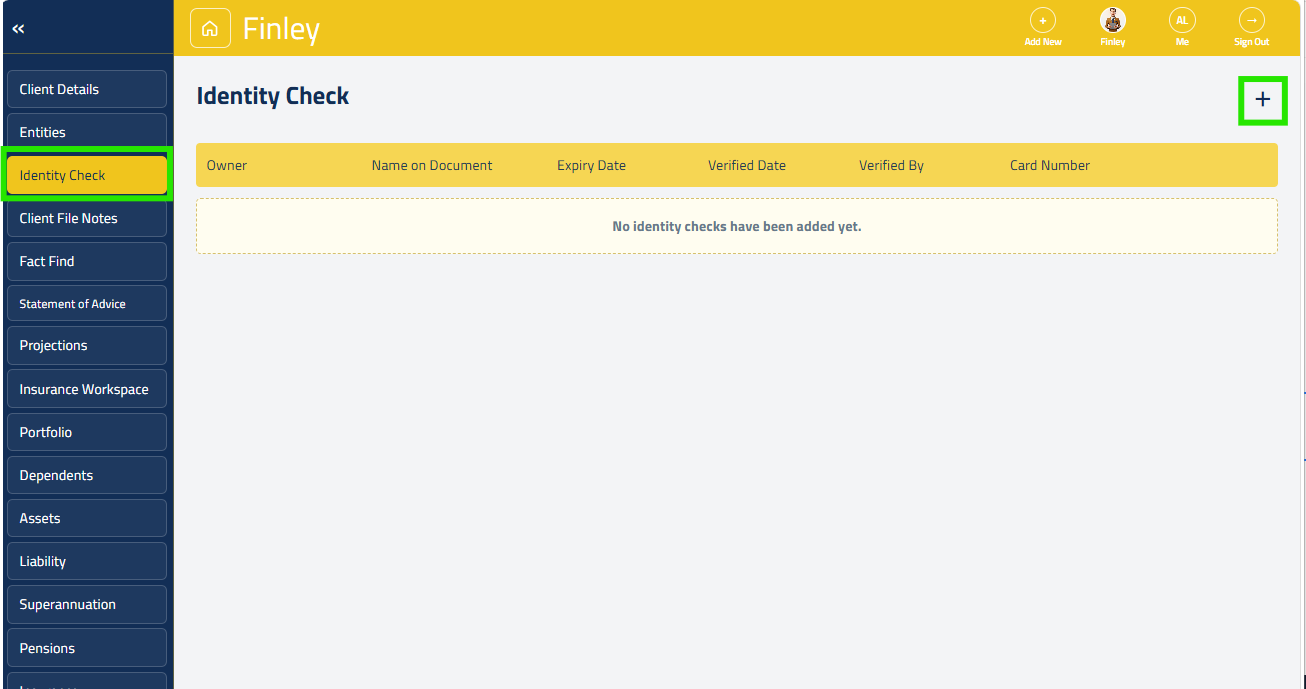
Select Identity Check in the left menu, then the + button labelled Add identity document. The Create Identity Check form has Identity Details and Risk Assessment stages. Choose the correct Owner before entering the document information.
From the client record in Finley:
Select Identity Check from the left-hand menu.
Click the + button in the top-right corner.
Finley will open the Create Identity Check workflow.
2. Record the identity details
Complete the required fields, including Verified From, Verification Method, Country of Residence, Name on Document, Date of Birth, Place of Residence, Expiry Date, Verified Date and Verified By. The Card Number field is for the last three digits only. Record what was checked and by whom; choosing Electronic Verification is a record of the method, not an instruction to run an external verification service.
3. Complete the assessment and notes
Select Next and read each Risk Assessment question carefully. Answer every question based on the enquiries completed. Use N/A only where the option is offered and it is appropriate. Record relevant context in AML/CTF Risk Assessment Notes and, where applicable, ECDD Notes.
4. Review and create
Review the identity details, answers and notes. Select Create to save a new check. Finley validates the required fields and unanswered assessment questions. On successful creation, the workflow also requests an AML/CTF risk-assessment Word document, starts a download and attempts to save it as a Client File Notes attachment.
5. Check the saved record
Confirm the check appears in the Identity Check list. Review the downloaded document and the AML/CTF Risk Assessment file note. Use Edit to correct an existing check and Save to retain the changes. Editing an existing check does not run the same automatic document-generation step shown for new checks, so confirm how your practice updates retained documents.
Check before you finish
Confirm owner, document name, verification date and verifier are correct.
Check that the file-note attachment and downloaded document exist before relying on them.
Keep any unresolved assessment issue in the practice’s approved review process.
If something does not work
Required-field error: complete the highlighted stage and try again. If identity evidence has no expiry date but the form requires one, ask your authorised compliance or support contact how to record it; do not invent a date.
No valid owner or sample-data mode: resolve the client record or live-data issue first.
“Identity check was created, but…” means part of the process failed after creation. Check the saved record before creating another check.
Document download or file-note failure: retain the error and ask support for the appropriate recovery step.